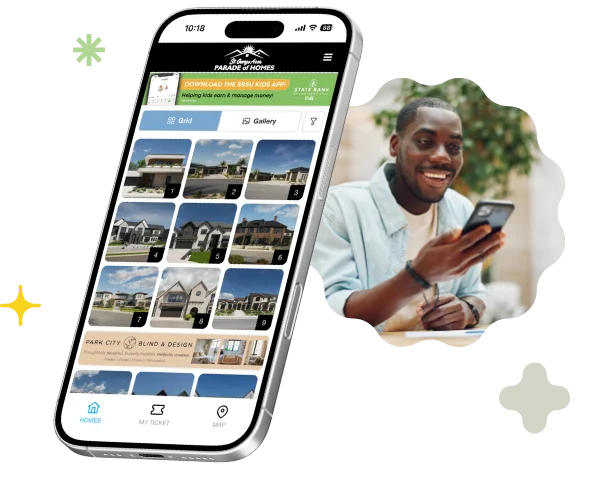
ParadeSmart advertisements are banner ads shown in your ParadeSmart website and/or mobile app. Each ad includes an image, an optional click link, and one or more placement areas, so you can control exactly where sponsors show up.
One quick note: you set your own sponsor pricing and keep the ad revenue. ParadeSmart provides the tools, but we do not take a percentage of what you charge sponsors.
What ad options do we offer?
ParadeSmart ads are banner style images that can be clickable (or not) and can run across both website and app placements.
Ad image sizes and design tips
- Standard banner size: 1200px wide × 200px tall
- For app visibility, use bigger text and a simpler layout since small details get lost on mobile screens.
- Pro tip: If you are running the same sponsor on both platforms, consider creating:
- a more detailed version for the website
- a cleaner, bold text version for the app
ParadeSmart Advertisements: Website and app placements
When you create an ad, you can select one or more “Areas” to control where it appears.
Website areas
- Website Home Page
- Homes list - Top (website only)
- Homes list - Bottom (website only)
- Static page - Top (website only)
- Static page - Bottom (website only)
- Home detail - Top (website only)
- Home detail - Bottom (website only)
App areas
- App Header - Top (app only) (most visible location)
- Homes list - Top (app only)
- Homes list - Inbetween (app only)
- Homes list - Bottom (app only)
- Static page - Top (app only)
- Static page - Bottom (app only)
- Home detail - Top (app only)
- Home detail - Bottom (app only)
- Register ticket - Top
Note on “Homes list - Inbetween (app only)”: this shows between every 3 rows of homes in grid view, is not shown in gallery view, and requires at least 10 homes for it to appear.
How to set up ParadeSmart advertisements
- Go to Advertisements in the Web Manager.
- Click Create (or select an existing advertisement to edit).
- Set the Link (or use # for no link).
- Upload your banner:
- Image (required)
- Intermediate image (optional, for a different app version)
- Check Active if it should display.
- Select one or more Areas (placements).
- Click Save.
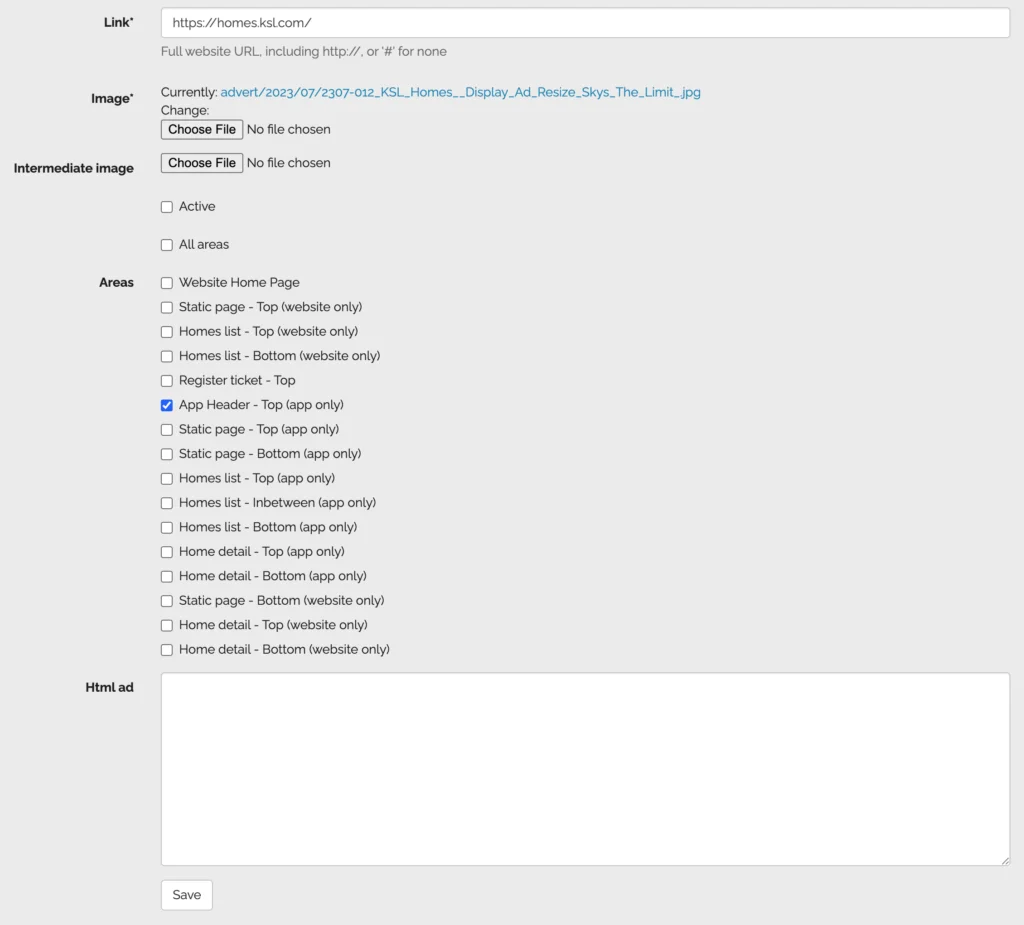
Image fields explained (website vs app)
- Image = default ad image (used for website, and also works for app)
- Intermediate image = optional alternate image used for the mobile app (helpful when you want a design optimized for app viewing)
Should an ad be clickable?
- The Link field controls where the ad goes when clicked.
- If you do not want it clickable, enter # in the Link field.
Quick admin tip: double-check placements fast
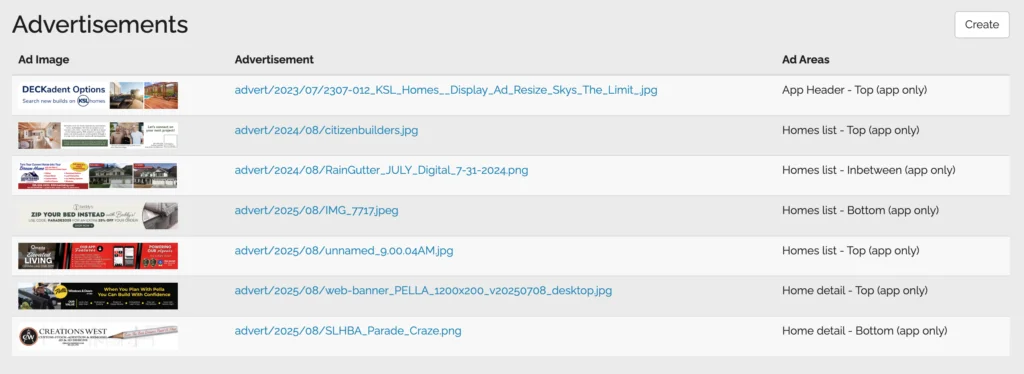
In the advertisement list, you can see an ad image preview, the advertisement image URL, and the assigned ad areas.
Want to learn more about advertisements?
For a deeper walkthrough of ParadeSmart advertisements, see our documentation here: General Information Manual (Advertisements).
If you have additional questions, you can email us at support@paradesmart.com.