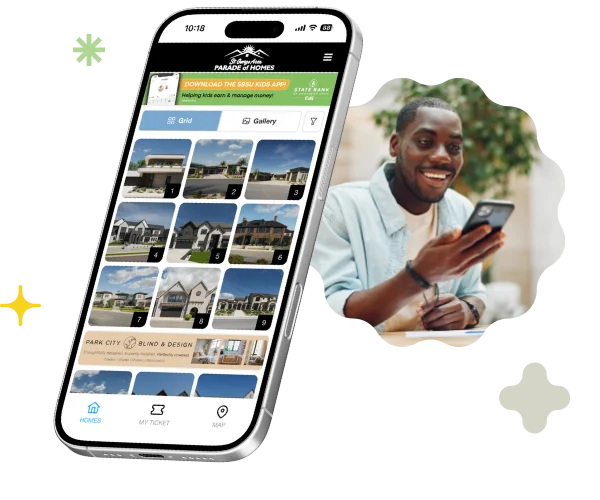
ParadeSmart advertisements are banner ads shown on your ParadeSmart website and in your mobile app. Each ad has an image, an optional click link, and the placement areas you choose, so you control exactly where sponsors show up.
One quick note: you set your own sponsor pricing and keep the ad revenue. ParadeSmart provides the tools, and we don’t take a percentage of what you charge sponsors.
What ad options do we offer?
ParadeSmart ads are banner images that can be clickable (or not) and can run across both website and app placements. You can run as many ads as you like. There’s no limit to the number of sponsors you can feature.
Ad image sizes and design tips
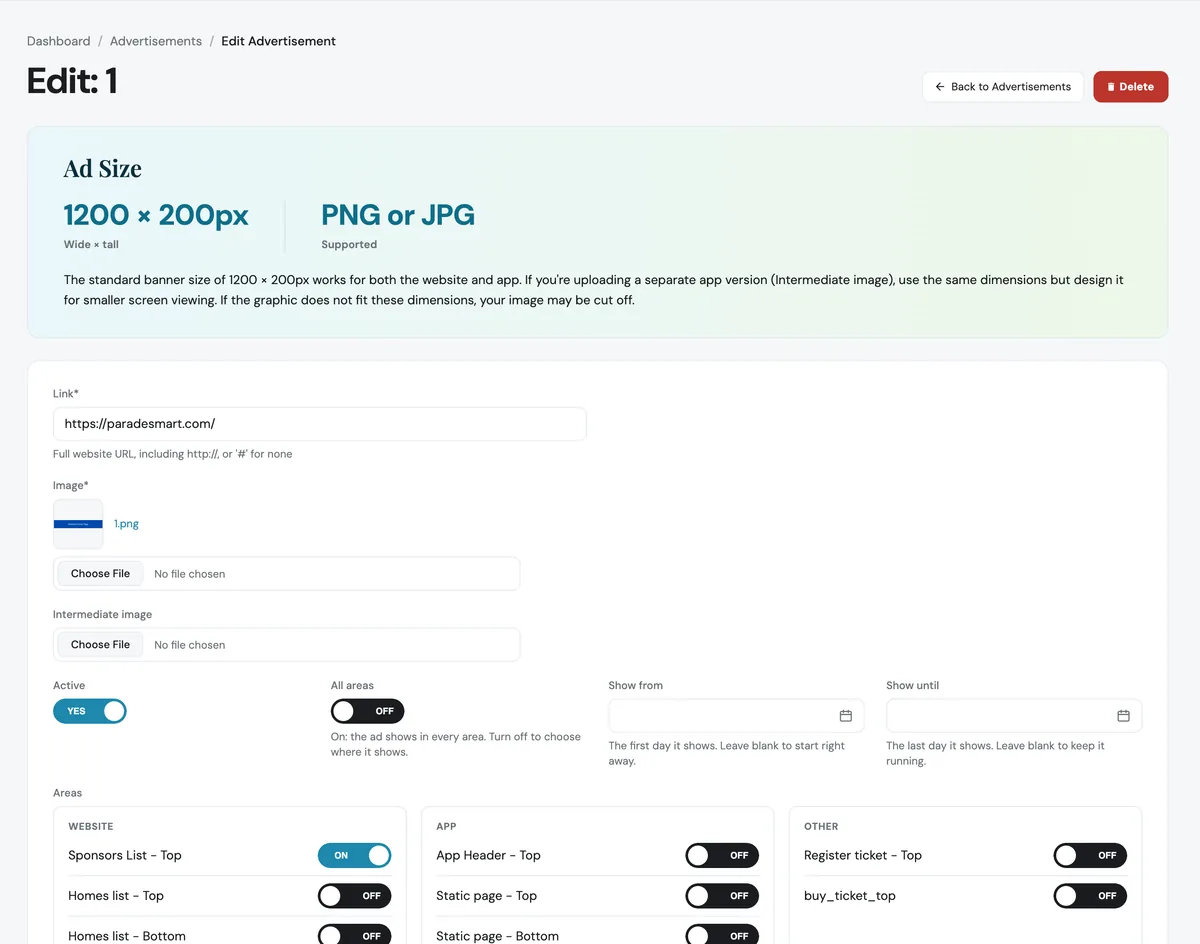
- Standard banner size: 1200px wide × 200px tall, for both the website and the app
- For the app, use bigger text and a simpler layout, since small details get lost on phone screens.
- Pro tip: if you’re running the same sponsor on both, consider making:
- a more detailed version for the website
- a cleaner, bold text version for the app
Where ads can show
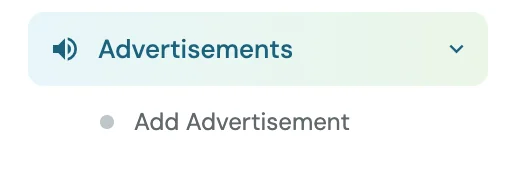
When you create an ad, All areas is on by default, so the ad shows everywhere. To pick specific spots, turn All areas off and switch on the areas you want.
Website areas
- Sponsors List - Top
- Homes list - Top
- Homes list - Bottom
- Static page - Top
- Static page - Bottom
- Home detail - Top
- Home detail - Bottom
App areas
- App Header - Top (the most visible spot, at the very top of the app’s main screen)
- Homes list - Top
- Homes list - Inbetween
- Homes list - Bottom
- Static page - Top
- Static page - Bottom
- Home detail - Top
- Home detail - Bottom
Other areas
- Register ticket - Top
- Buy ticket - Top (at the top of the page where visitors buy tickets)
Note on “Homes list - Inbetween”: this shows between every 3 rows of homes in grid view, doesn’t show in gallery view, and needs at least 10 homes to appear.
How to set up ParadeSmart advertisements
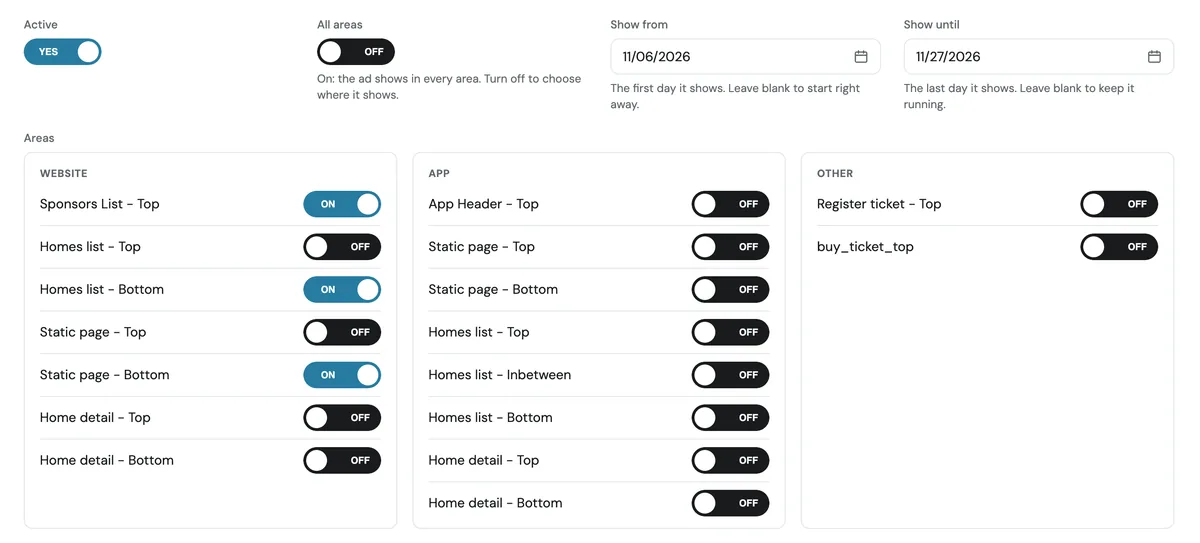
- Click Advertisements in the Dashboard sidebar. It’s under Setup.
- Click Add Advertisement right under Advertisements in the sidebar, or the + Add Advertisement button at the top right of the Advertisements list. To edit an existing ad, click the pencil button next to it.
- Set the Link. If you don’t want the ad to be clickable, enter #.
- Upload your banner:
- Image (required): the default banner, used on the website. It works for the app too.
- Intermediate image (optional): a different version for the app
- Set Active to Yes so the ad shows. You can turn it off any time to pause an ad without deleting it.
- Choose where the ad shows (see the areas above).
- Set run dates if you’d like (see below).
- Click Save.
New: Set run dates for each sponsor
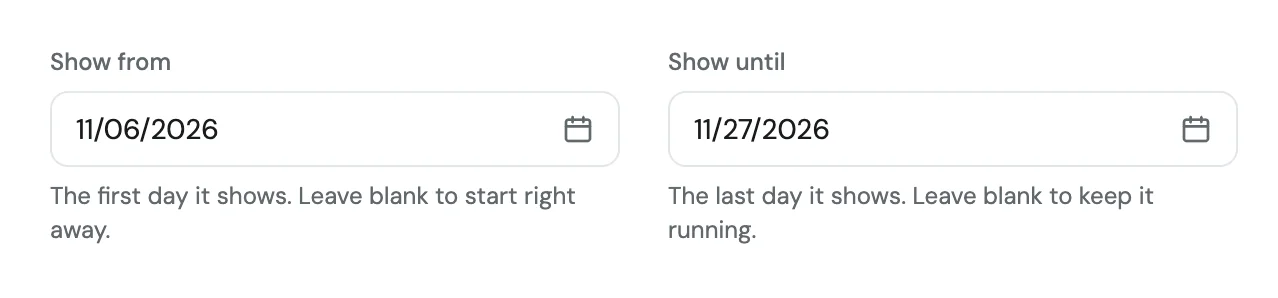
Each ad has Show from (the first day it shows) and Show until (the last day it shows). The ad comes down on its own when the sponsorship ends, so you don’t have to remember to turn it off. Leave them blank to start right away and keep it running.
Show sponsors how their ads did
After your event, open the Advertisement Clicks report. Click Reports in the sidebar, then Advertisement Clicks under Engagement. It shows total clicks and clicks by area for every ad, and you can export it. It’s great proof of value for sponsor renewal conversations.
Want to learn more about advertisements?
For step-by-step instructions with screenshots, see Advertisements & Sponsors in the ParadeSmart Help Center.
If you have more questions, email us at support@paradesmart.com.