
A step-by-step guide for new clients and returning organizers alike
Learning how to add builders and homes in ParadeSmart is one of the first things you’ll do as a new client, and it’s easier than you might think. This guide walks you through logging in, setting up your builders, connecting them to homes, and keeping homes hidden until you’re ready to go live. Everything here matches the new ParadeSmart Dashboard.
Step 1: Log Into the Dashboard
Head to https://app.paradesmart.com/manage and enter your username and password. The ParadeSmart team sends these when your account is set up. If you’re unsure of your login, reach out to support@paradesmart.com and we’ll get you squared away.
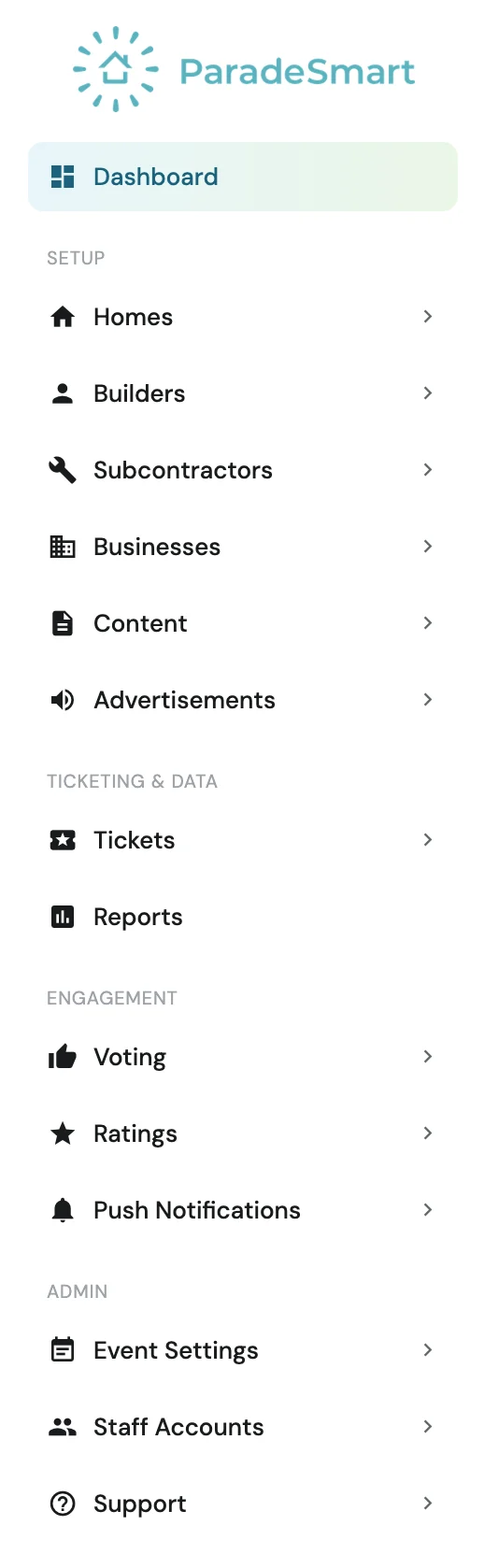
Once you’re in, you’ll see the sidebar on the left with everything you need to manage your event. It’s grouped into Setup, Ticketing & Data, Engagement, and Admin. Builders and homes are both under Setup.
Step 2: Add Your Builders
This is the most important thing to know before you start: builders need to be in the system before you add homes. Each home gets connected to a builder, so setting those up first saves you from going back to make edits later.
Here’s how to add a builder:
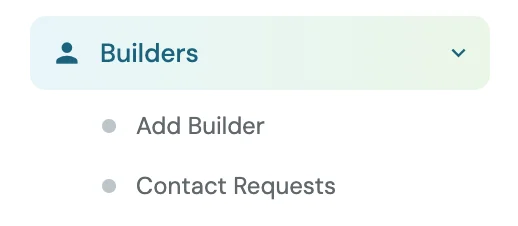
- Click Builders in the sidebar
- Click Add Builder right under it, or the + Add Builder button at the top right of the Builders list. Both open the same form.
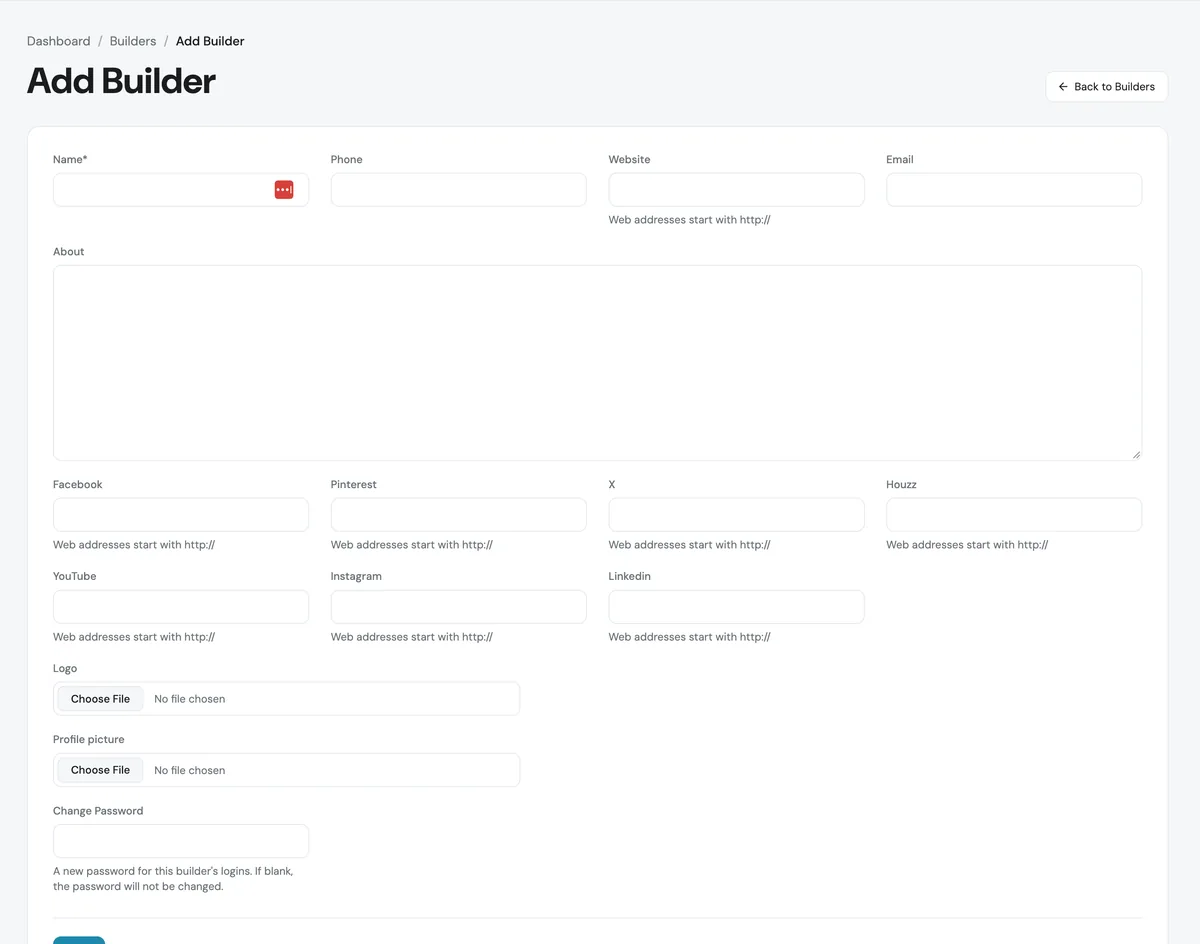
- Fill in the builder’s information. Only the Name is required, usually their business name. You can also add their phone, website, email, an About section, social links, a logo, and a profile picture.
- If the builder will log in to update their homes or scan tickets during the event, type a password in Change Password
- Click Save at the bottom of the form
Tip: Builder logins are created automatically when you add a builder. You don’t need to create a separate user for them in Staff Accounts. Just set a password and send the username and password to your builder when the time comes.
Tip: Every builder needs a name, usually their business name. An About section and a logo are optional, but adding them makes the profile look more complete.
Step 3: Add Your Homes and Connect Them to a Builder
Once your builders are added, the next step is creating your homes and linking each one to its builder.
Here’s how:
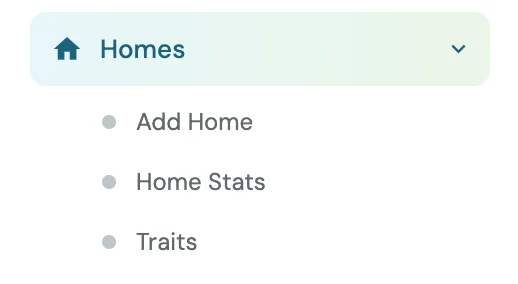
- Click Homes in the sidebar
- Click Add Home right under it, or the + Add Home button at the top right of the Homes list. Both open the same form.
- Enter the home’s name in Home / Model Name
- Choose the home’s builder in the Builder dropdown. If the builder isn’t in the list yet, you can type their name right there and click Add Builder. That only creates a placeholder, so fill in the rest of their profile under Builders afterward.
- Enter the home’s Index. It’s required, and it sets the home’s number and its order in the listings.
- Fill in as much of the listing as you have, like the price, square footage, and address.
- Click Add Home
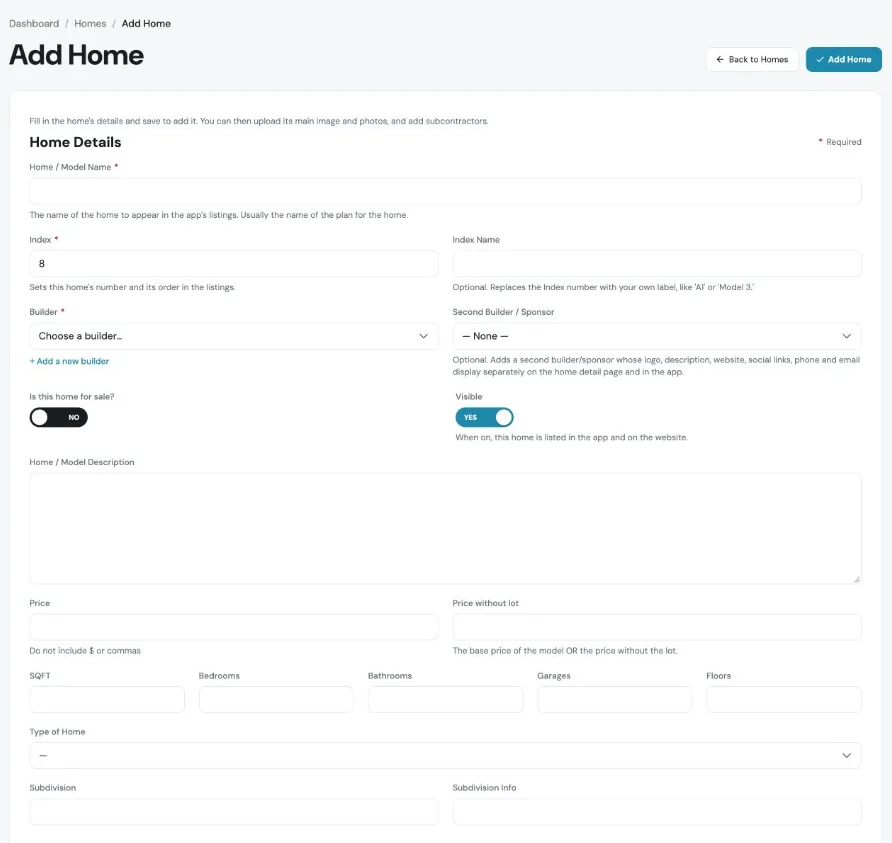
After you add the home, click the pencil button next to it on the Homes list to finish it. Each home has three tabs at the top:
- Preview: upload the home’s Main Image and its Floor Plan & Additional Home Photos
- Edit Info: change any of the home’s details, then click Save
- Subcontractors: add the trades and companies that worked on the home
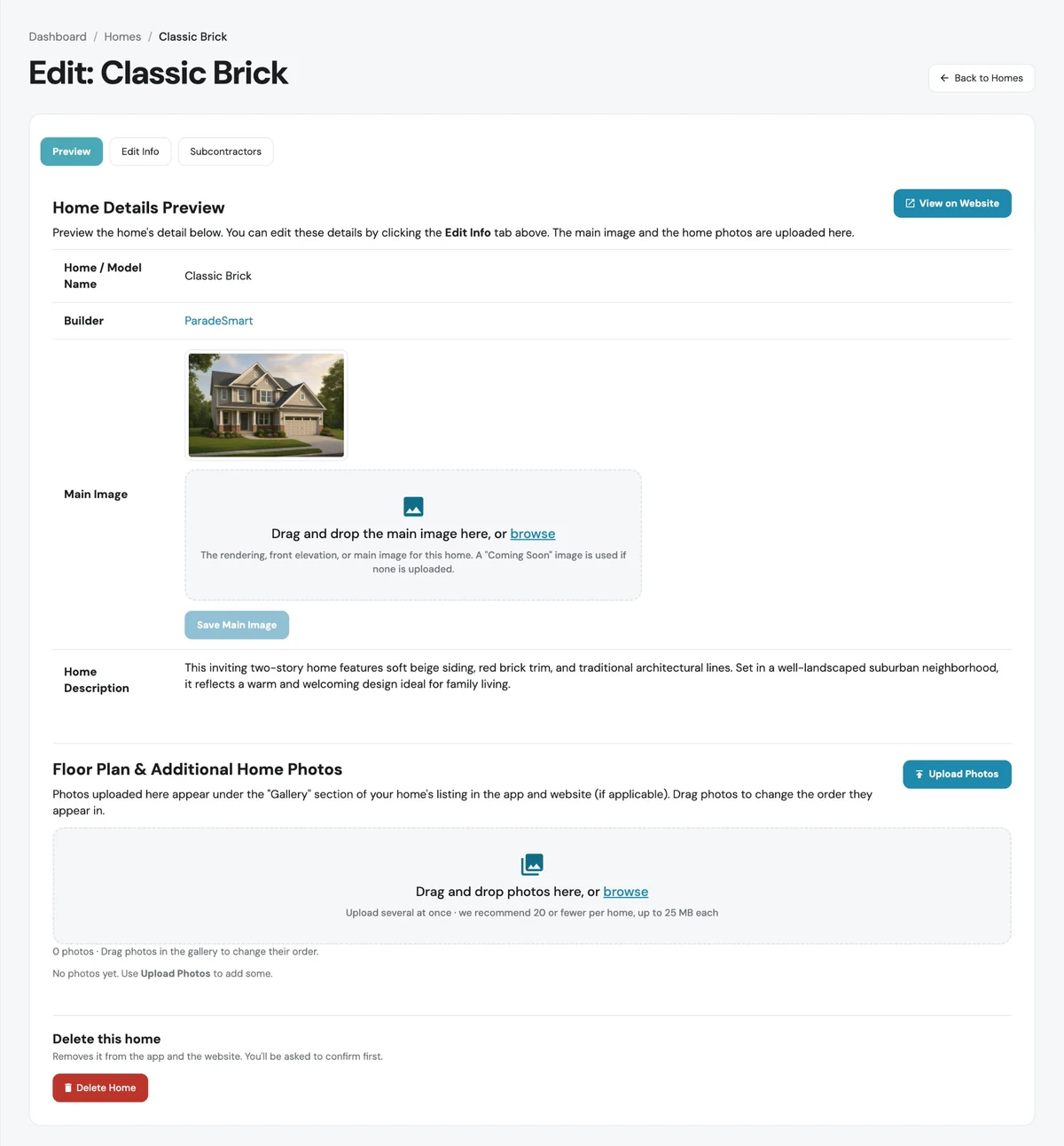
You can come back and edit a home as many times as you need. Our Help Center walks through each tab.
Tip: Homes that will show on the map need an address and GPS coordinates. Virtual tour only homes can skip both. Our Help Center walks through the easiest way to get exact coordinates from Google Maps.
Good to know: When a home is linked to a builder, that builder can log in and edit the home’s information. If you’d rather your builders not edit their homes, email support@paradesmart.com and we’ll turn that off.
Step 4: Hide Homes Until You’re Ready
You don’t have to make homes public right away. You can hide any home so it doesn’t appear on your website or in the app until you’re ready to show it.
To hide or show one home: click Homes in the sidebar, then switch the home’s Visible toggle. Yes means visitors can see the home. No hides it.
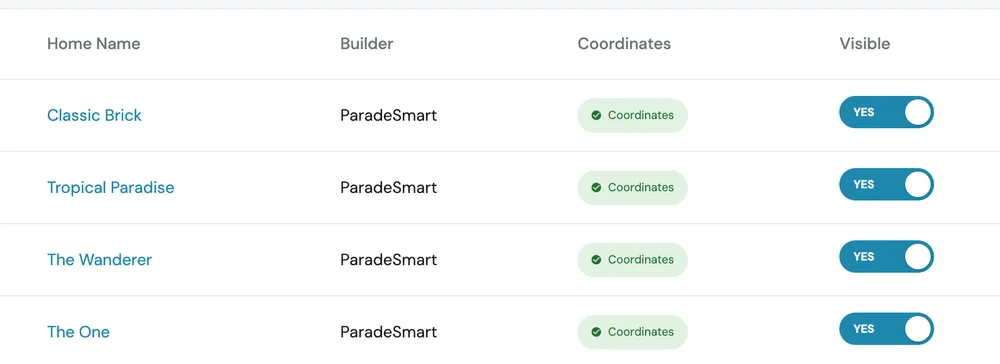
To hide every home at once: click Hide All Homes at the top right of the Homes list, then confirm in the pop-up. Use the same button, or each home’s Visible toggle, to show them again.
This is a great way to build out all your content in advance, then flip everything live when you’re ready for the public to see it.
Want homes to show, but not their addresses yet? Set Addresses Go Live in Event Settings. Until that date, visible homes still show in the app and on your website, just without addresses or map pins. From that date, addresses show until your event ends. If it’s left blank, addresses show right away.
Need Help Getting Started?
If you have questions about adding builders and homes in ParadeSmart, our team is always happy to help. You’ll find step-by-step instructions with screenshots in Homes & Builders in the ParadeSmart Help Center. Reach out anytime at support@paradesmart.com.

