Advertising
Sell sponsor banner ads in your parade app and website — and keep every dollar of the revenue for your HBA.
⏱ About 5 min readOverview
Advertisements are banner images that appear at designated locations in your parade website and mobile app. Each ad has an image, an optional click-through link, and one or more placements you choose. You can run as many ads as you like — there's no limit to the number of sponsors you can feature.
How to Create or Edit an Ad
- 1Go to Advertisements in the Web Manager
- 2Click Create (or click an existing ad to edit it)
- 3Set the Link field
Enter the URL where the ad should go when clicked. If you don't want the ad to be clickable, enter
#in the Link field. - 4Upload your banner image
Image* (required) — the default banner used for the website. It also works for the app.
Intermediate image (optional) — an alternate version optimized specifically for the mobile app. Upload this if you want a different design for the smaller screen. - 5Check the Active box
Only active ads are displayed. You can toggle this on and off any time to run or pause a sponsor's ad.
- 6Select one or more Areas (placements)
See the full placement list below. You can choose multiple placements for a single ad.
- 7Click Save
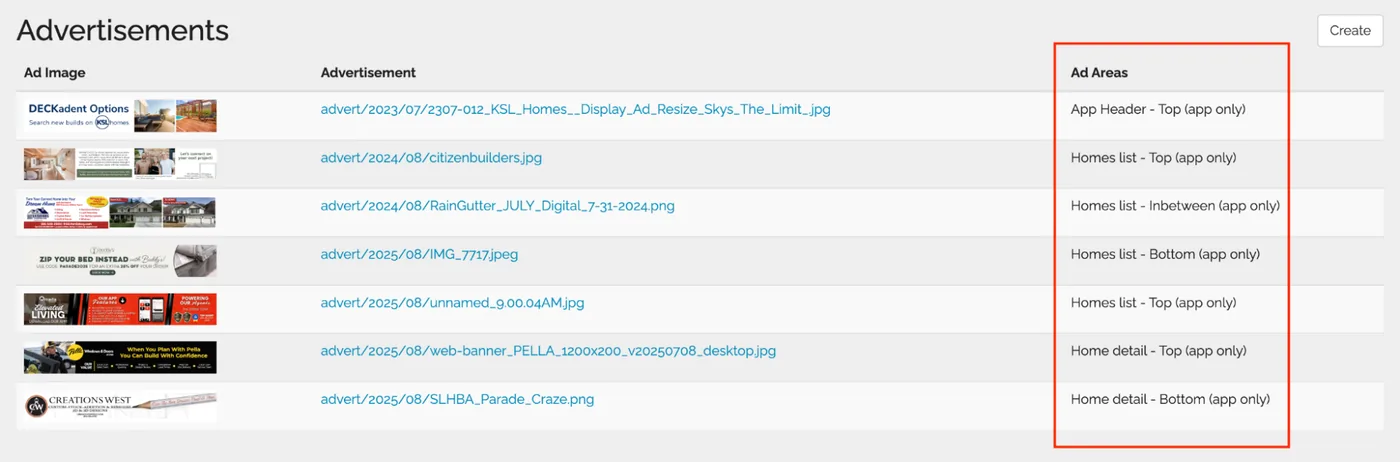
After your parade, revisit each ad in the Web Manager to see how many times each placement was clicked. This data is useful for sponsor reporting and proving the value of parade advertising to future partners.
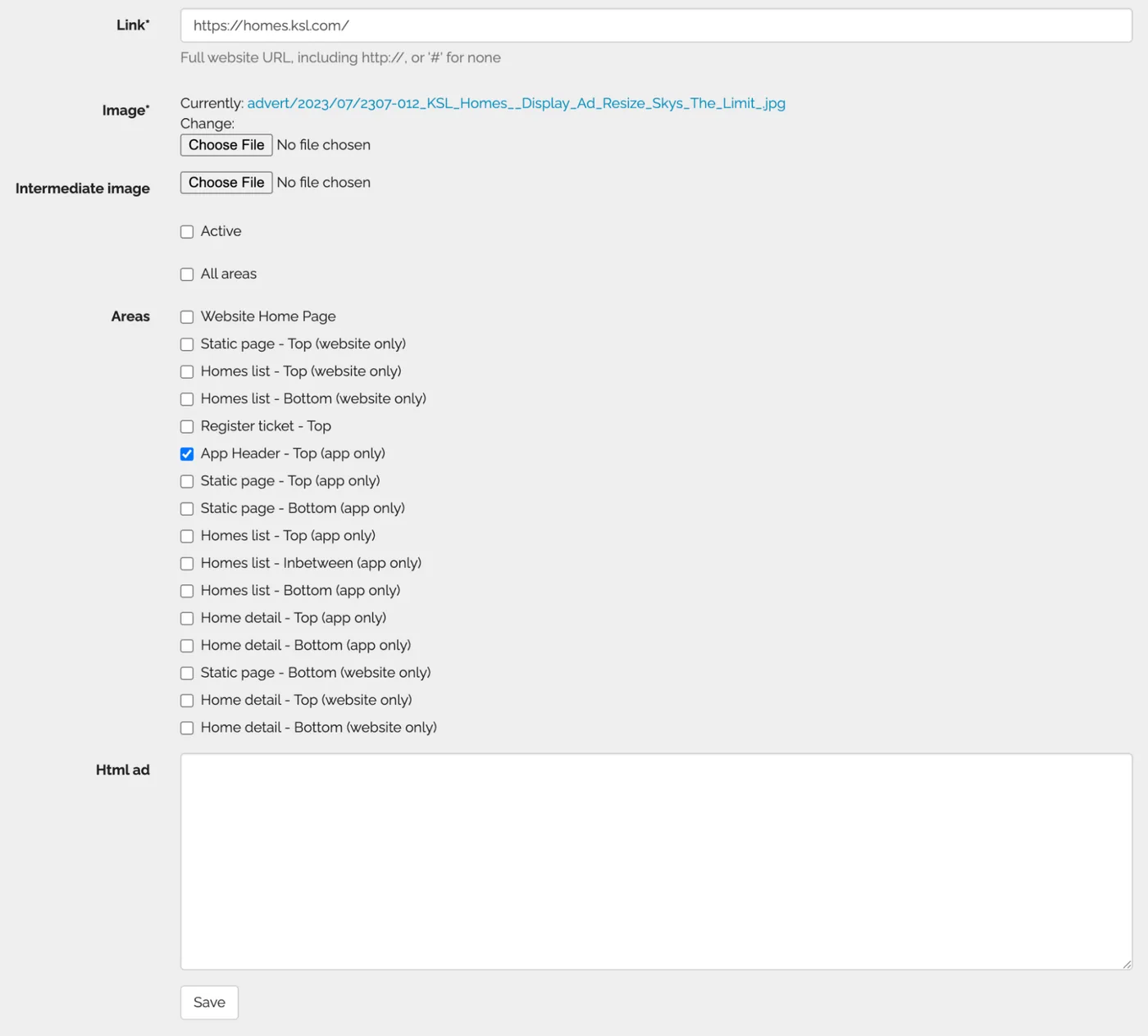
Image Sizes & Specs
The standard banner size of 1200 × 200px works for both the website and app. If you're uploading a separate app version (Intermediate image), you can use the same dimensions but design it for smaller screen viewing.
The app renders banners on mobile screens where small text and fine details disappear. For the app version, use large, bold text and a simple, high-contrast layout. For the website version, you can include more detail. Consider making two versions of each sponsor's banner when possible.
All Placement Areas
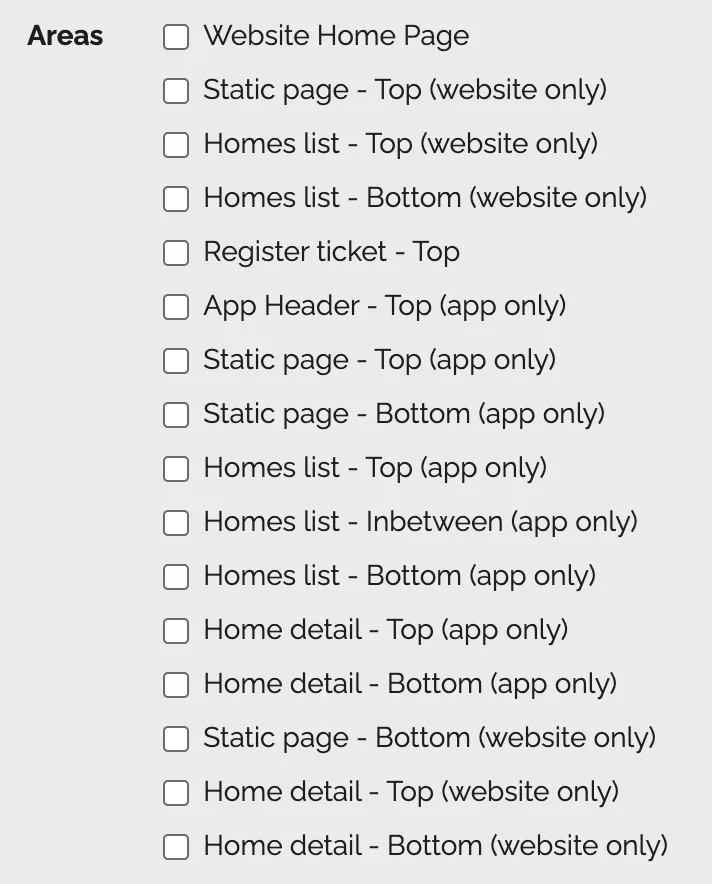
Choose where each ad appears. You can select multiple areas per ad — useful if you want a sponsor visible both at the top of the home list and on individual home detail pages.
Website placements
- Website Home Page
- Homes list — Top
- Homes list — Bottom
- Static page — Top
- Static page — Bottom
- Home detail — Top
- Home detail — Bottom
App placements
- App Header — Top ★ Most visible
- Homes list — Top
- Homes list — Inbetween (every 3 rows; needs 10+ homes)
- Homes list — Bottom
- Static page — Top
- Static page — Bottom
- Home detail — Top
- Home detail — Bottom
- Register ticket — Top
This position appears at the very top of the app's main screen — the first thing attendees see. Reserve this for your highest-value sponsors.
Tips & Best Practices
- ✅Use the Active toggle to manage sponsor campaigns. Turn ads on and off without deleting them. This keeps click count history intact and makes it easy to re-run an ad or pause it mid-event.
- ✅Upload both image versions for dual-platform parades. Use the Image* field for the website version and the Intermediate image field for the app version when you want each to be optimized for its platform.
- ✅Share click count data with sponsors after the event. The Ads Report (under Reports in the Web Manager) exports total clicks and clicks by area — powerful proof-of-value for sponsor renewal conversations.
- ✅For app-only parades, the Image* field alone is sufficient. You don't need an intermediate image if your event doesn't have a website component.
- ✅Enter # in the Link field for non-clickable ads. Some sponsors may not have a website or may not want to track clicks — this disables the link without removing the ad.