Users & Permissions
Manage logins for your staff, builders, and volunteers. Every user role has a different level of access — here's how each one works.
⏱ About 6 min readUser Roles Explained
ParadeSmart has five user roles. Each controls what someone can see and do in the Web Manager and the app.
Adding Users
Builder accounts are created automatically when you add a builder in the Builders section. Creating one here manually will create a duplicate. Just find the auto-created account and add a password.
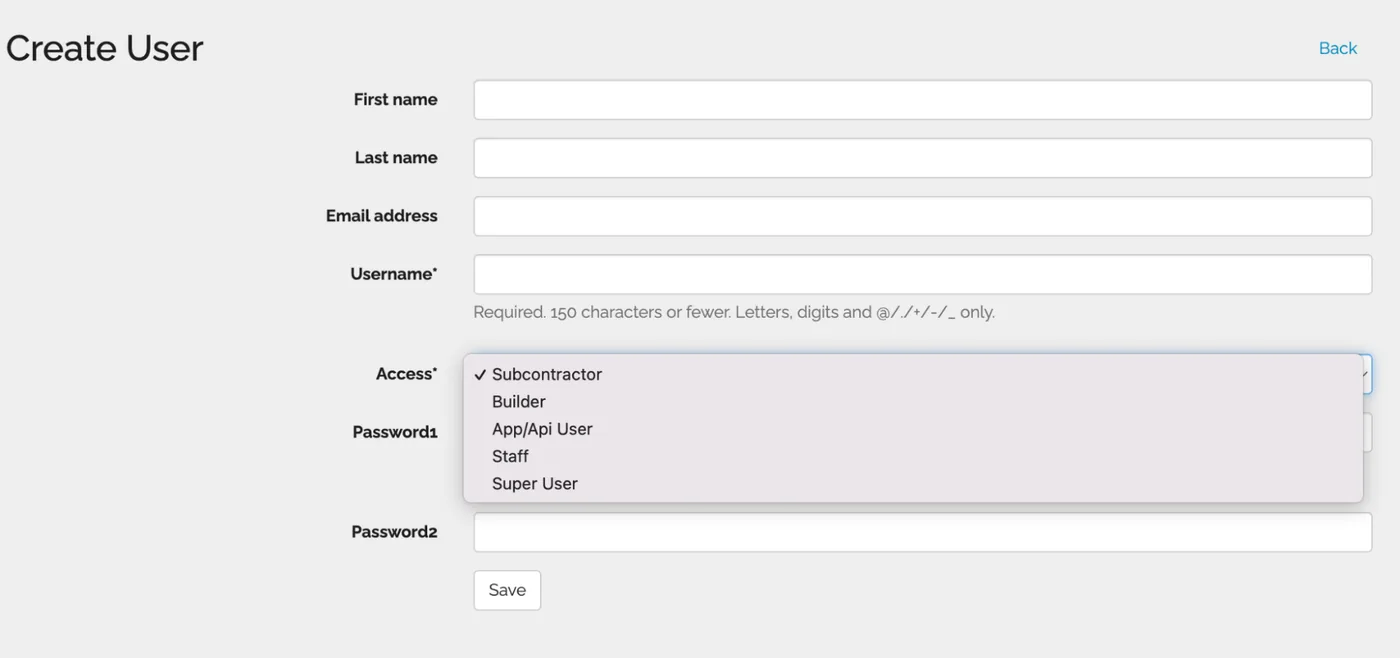
How to add a new staff or super user
- 1Go to Users in the Web Manager
parade.velocitywebworks.com/manage/users - 2Click Create (or upload a spreadsheet with multiple users)
You can bulk-add users via CSV spreadsheet upload, or add them one at a time.
- 3Enter the user's information and select their role
Set the access level appropriate to what they'll need — Staff for parade-day volunteers, Super User only for key administrators.
- 4Assign a password and share it with the user
Users can update their own password after their first login if they prefer.
For security reasons, no one can view a stored password. If a user forgets theirs, go to their user record and set a new password. There's no "forgot password" recovery — just reset it.

Builder Logins
Builder accounts are created automatically. Your job is to set a password and provide it to the builder so they can access the scanning interface on parade day.
Once logged in with a builder account, the user can scan visitor tickets, sell door tickets, and view scan stats for their assigned home(s). They cannot access full ticket or visitor reports — that access is limited to Staff, Super Users, and administrators.
Scan Stats & Live Traffic Data (For Builders)
Builders can monitor their own home's traffic in real time through the app — without needing access to the full analytics dashboard. Here's how:
- Log into the app with builder credentials under Admin & Staff Login
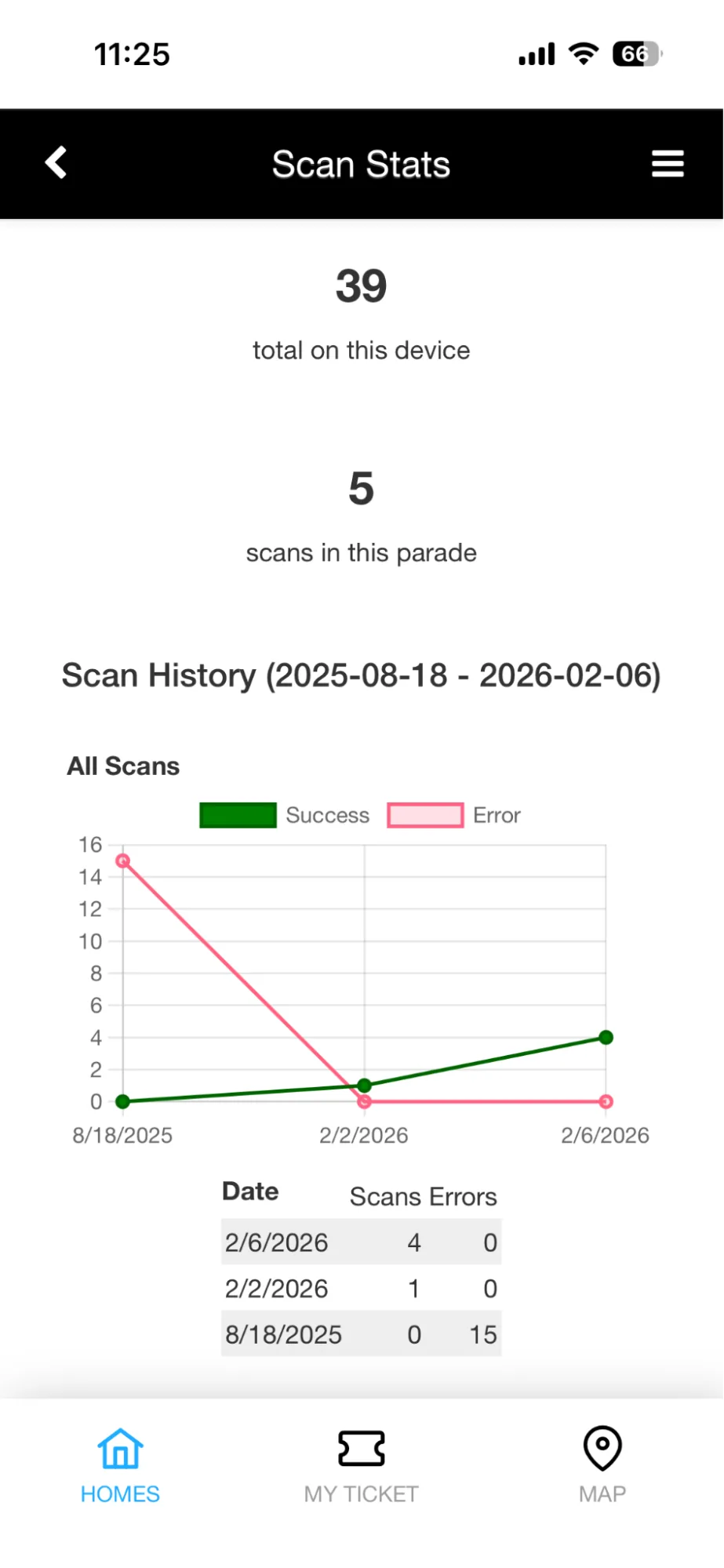
- Tap Scan Stats to see overall event scan history and data specific to their home
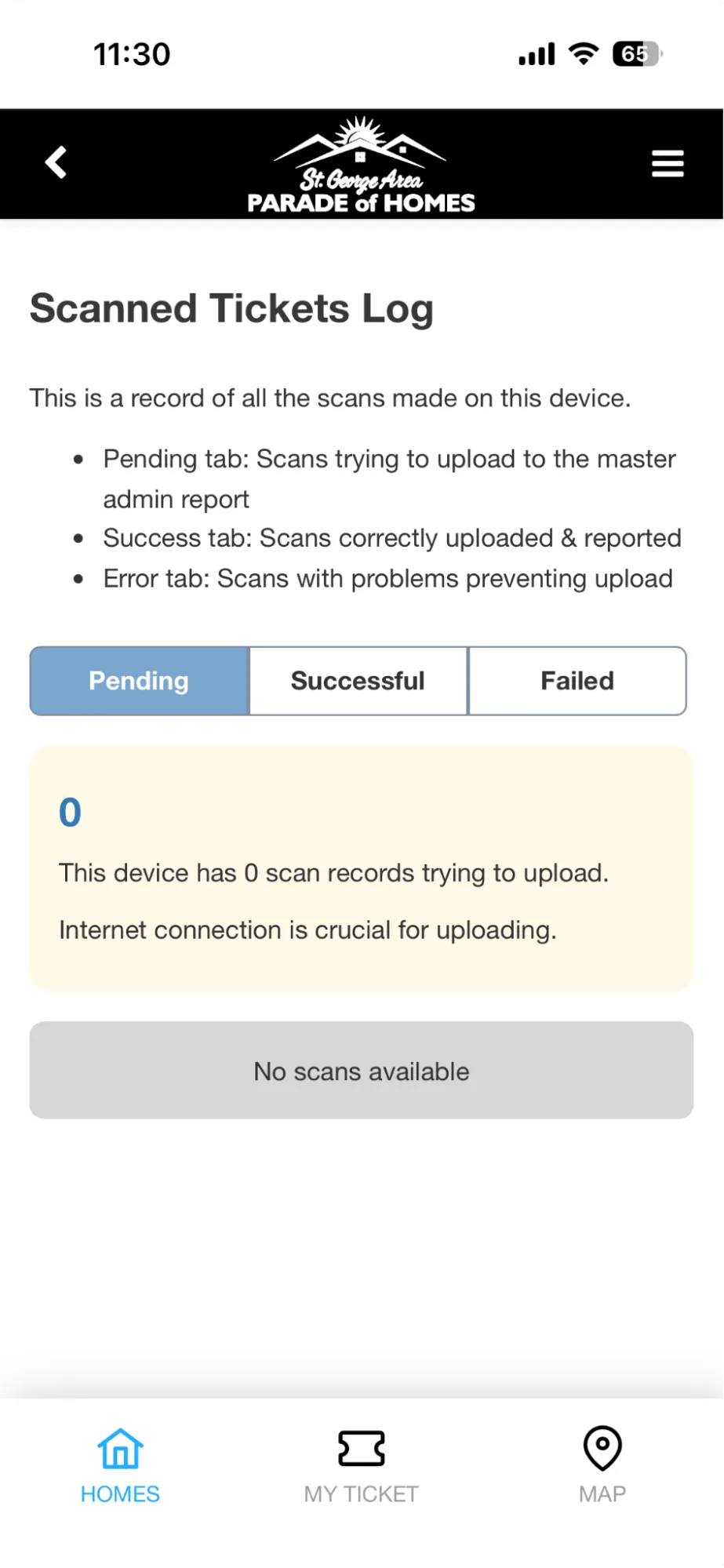
- Tap Scanned Tickets Log to see a record of every scan made on that device
Scanned Tickets Log tabs
- PendingScans trying to upload to the master admin report — usually means the device was offline at scan time. Will sync when reconnected.
- SuccessScans correctly uploaded and reflected in the main report.
- ErrorScans with problems that prevented upload. Contact support if errors persist after reconnecting.
The Reset Button
The Reset button is located near the login button in the app. It clears cached app data so builders and staff see the most up-to-date version after a fix or update.
What resetting clears
- →The user will need to log in again
- →The user will need to re-register their ticket
What resetting does NOT clear
- ✅Pending and successful scan history in the Scanned Tickets Log remains intact
If a builder or volunteer notices the app isn't reflecting recent changes (new homes, updated info, a bug fix), a quick reset usually resolves it without needing to contact support.
Multi-Home Builder Confirmation
If a builder or staff member is linked to more than one home, ParadeSmart will prompt them to confirm which home they're scanning at when they open the scanner. This prevents mix-ups during busy parade weekends when a builder or volunteer is working across multiple homes.
When they move from one home to another, they should re-confirm their current home in the app before scanning tickets there. Scans recorded under the wrong home affect that home's traffic stats.